Published on
How to connect Claude to your B2B workflow and let it do the work where it already happens
Contributors

Orderchamp
5 min read

In this article
Wholesale teams often work across several systems at once: email, product files, B2B portals, CRM software, stock systems and logged-in supplier platforms.
Claude becomes more useful when it can access those tools directly. Instead of repeatedly copying information into a chat, you can connect Claude to selected parts of your workflow - like your order management software - so it can search, summarise, prepare drafts and carry out clearly defined tasks.
Here are the main ways wholesale brands can do that.
Start with the right level of access
Before connecting Claude to a business tool, decide what it should be allowed to do.
Read and understand: Claude searches information without changing anything. For example, it could summarise retailer emails or review product files.
Prepare work: Claude creates a draft for you to approve, such as a retailer reply, sales brief or product description.
Take action: Claude updates information inside another system, such as creating a task or entering approved content into a B2B portal.
Starting with read-only access is usually the safest approach.
1. Connect Claude to your mailbox
Email is one of the most useful connections for wholesale teams because retailer questions, order updates and commercial agreements often live inside long email threads.
With Gmail connected, Claude can search messages, review conversations and prepare reply drafts.
How to connect Gmail
Open Claude.
Go to Settings or open Search and tools.
Find Google Workspace or Gmail.
Select Connect.
Sign in to the relevant Google account.
Review and approve the requested permissions.
Enable Gmail in the conversation where you want to use it.
On a company account, an administrator may need to approve the connector first.
Useful wholesale prompts
Search my inbox for retailer questions about delivery dates from the past two weeks. Summarise which conversations still need a reply.
Find the latest email thread with [RETAILER NAME] and draft a response confirming that the Autumn collection is available to order. Save it as a draft, but do not send it.
Review emails from retailers asking about minimum order requirements and group the most common questions.
Claude can help with:
Summarising retailer conversations.
Finding unanswered sales enquiries.
Preparing follow-up emails.
Reviewing agreements made by email.
Grouping repeated product or delivery questions.
Always review recipients, delivery dates, prices and commercial commitments before sending.
2. Use Claude in Chrome for logged-in wholesale platforms
A normal AI chat cannot usually see the private version of a website you are logged into.
Claude in Chrome can work inside your current browser session. It can read pages and, when instructed, navigate, click, type and fill in forms.
This is useful for wholesale tools that do not have a direct Claude connector, including B2B portals, ecommerce back offices, CRM systems and supplier dashboards.
How to install it
Open the Chrome Web Store.
Search for the official Claude in Chrome extension.
Select Add to Chrome.
Sign in with your Claude account.
Pin the extension in Chrome.
Open the Claude side panel.
Approve the required permissions.
To use it through Claude Desktop:
Open Settings.
Select Connectors.
Find Claude in Chrome.
Select Configure and enable it.
Turn it on in the relevant conversation.
Wholesale use cases
Claude in Chrome could help you:
Review whether a new collection has been published correctly.
Check product pages for missing images or descriptions.
Compare information across retailer accounts.
Add approved copy to a B2B portal.
Review a campaign or sales dashboard.
Enter information into repetitive forms.
Check whether customer-specific catalogues display correctly.
Start with supervised tasks.
Review the products in our Autumn collection and identify any pages missing a product image. Do not change anything.
Then move to limited actions.
Add the approved descriptions from this document to the relevant product pages. Do not change pricing, stock, customer access or publication settings. Stop before saving.
Clear limits are important. Avoid broad instructions such as “clean up the portal” or “optimise all products”.
3. Set up an MCP connection
MCP stands for Model Context Protocol. It allows Claude to connect to external business tools and data sources through a standardised connection.
For a wholesale brand, an MCP connection could potentially give Claude access to selected functions inside systems such as:
ERP software.
CRM platforms.
Product information management systems.
Inventory tools.
Warehouse software.
B2B ordering systems.
Internal databases.
The available actions depend entirely on the MCP server and the permissions it exposes.
Claude might be able to search customers, retrieve product information, check stock, read orders or create tasks.
Add a remote MCP connector
Remote MCP is suitable when the business tool is cloud-based and an MCP server is already available.
Before starting, you need:
The MCP server URL.
The authentication method.
A clear overview of the available tools.
Confirmation that the provider is trustworthy.
Details of what Claude will be able to read or change.
Setup steps
Open Claude.
Go to Settings.
Select Connectors.
Choose Add custom connector.
Select the web or remote option.
Enter the MCP server URL.
Complete authentication.
Review the requested permissions.
Save the connector.
Enable it in a new conversation.
For Team and Enterprise accounts, an administrator may need to approve the connector first.
Test it before allowing changes
First, ask Claude what the connection can do.
List the tools available through this MCP connection. Do not use them yet. Explain which tools can read data and which can make changes.
Then try a read-only wholesale task.
Search our product system for items in the Autumn collection with fewer than 100 units in stock. Do not update anything.
Or:
Find retailers that ordered our Christmas collection last year but have not placed a new order this season.
Only test write actions once the read-only results are reliable.
Local MCP and desktop extensions
A local connection can be useful when Claude needs to work with files or software stored on your computer or internal network.
Examples include:
Local product spreadsheets.
Exported order files.
Internal databases.
Shared catalogue folders.
Desktop applications.
These connections are normally installed through Claude Desktop under Settings and Extensions.
Use a remote MCP connector for shared cloud tools. Use a local extension when the information only exists on a computer or private network.
4. Use built-in connectors for documents and other tools
Not every connection needs a custom MCP setup.
Claude also supports built-in connectors for selected workplace tools. These can help wholesale teams search documents, review internal information and prepare content without repeatedly uploading the same files.
For example, Claude could:
Search a connected product brief.
Summarise a retailer presentation.
Compare information across several documents.
Prepare a launch email using an approved catalogue.
Create a sales brief before a retailer meeting.
The setup is similar:
Open Search and tools.
Select Add connectors.
Choose the relevant platform.
Sign in.
Review the permissions.
Enable the connector in your conversation.
5. Combine connections into a wholesale workflow
The strongest results often come from using several connections together.
Prepare for a retailer meeting
Claude could:
Search Gmail for recent conversations.
Review the calendar invitation.
Retrieve account information through a CRM connector.
Summarise previous orders.
Prepare a one-page sales brief.
Example prompt:
Prepare me for tomorrow’s meeting with [RETAILER NAME] Use Gmail, Calendar and the connected CRM. Summarise recent communication, previous orders, open questions and possible reorder opportunities. Do not update the CRM or contact the retailer.
Prepare a collection launch
Claude could:
Read the approved product file.
Prepare product descriptions.
Open the B2B portal through Chrome.
Add the approved content.
Check the preview.
Stop before publishing.
Review retailer demand
Claude could:
Search retailer emails.
Group repeated product requests.
Compare them with current catalogue and stock data.
Create a short report for the sales or buying team.
Build safeguards into every connection
Giving Claude access to business tools can save time, but each connection should have a clear scope.
A few practical rules:
Give Claude only the access it needs.
Start with read-only tasks.
Keep a review step before external actions.
Ask Claude to show proposed changes first.
Set a clear stopping point.
Review active connectors regularly.
Treat API keys like passwords.
Useful instructions include:
“Do not send.”
“Do not publish.”
“Create a draft only.”
“Do not change pricing or stock.”
“Stop before saving.”
“Show me the proposed actions first.”
Be especially careful around payments, customer-specific pricing, contracts, confidential retailer data and administrator settings.
Bring Claude closer to the work
The best Claude connection is not the most advanced one. It is the one that removes a repeated handover in your wholesale workflow.
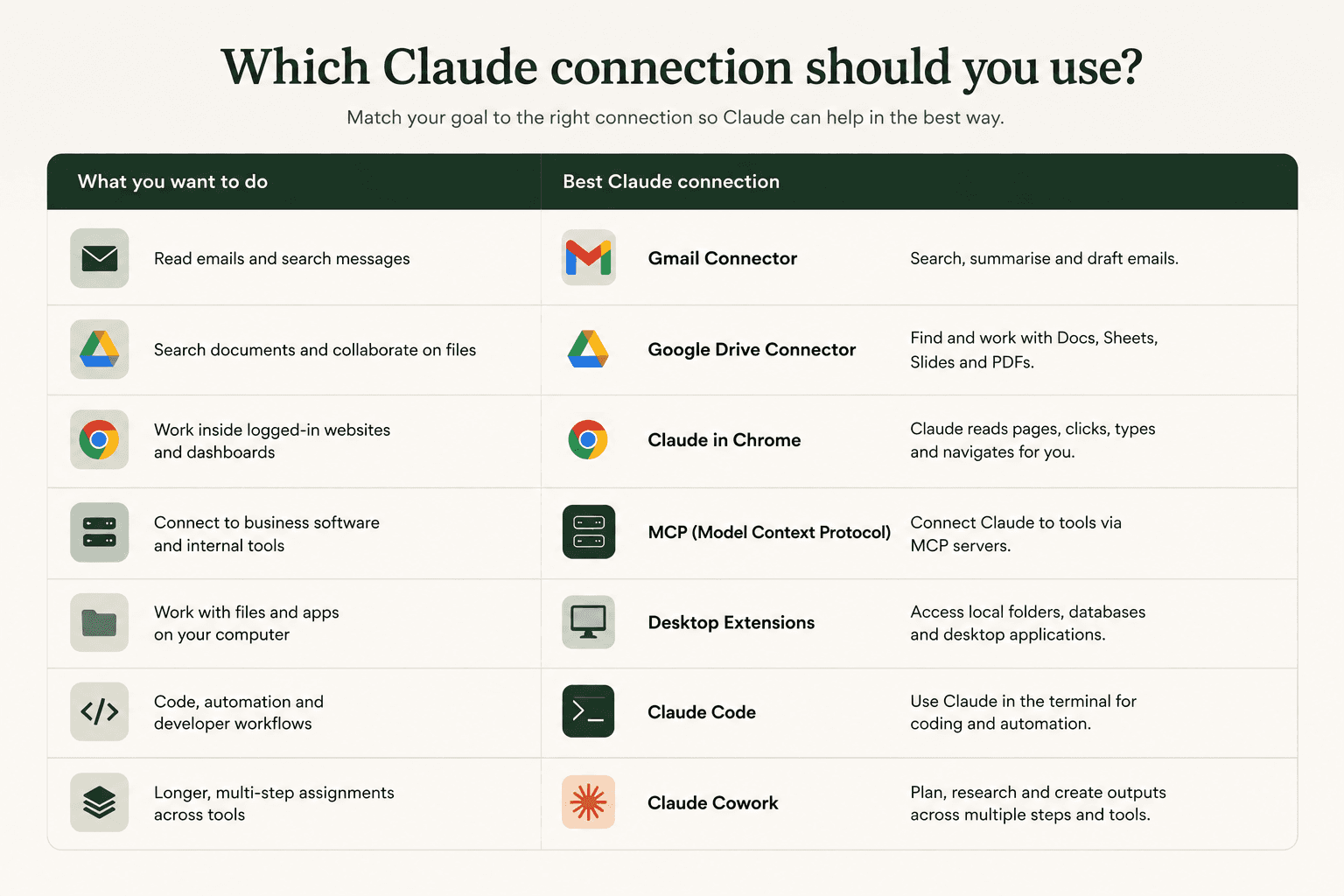
Use Gmail when the information lives in retailer conversations. Use Claude in Chrome when the work happens inside a logged-in portal. Use MCP when Claude needs structured access to business software such as an ERP, CRM or inventory system.
Start with one focused task, keep the permissions limited and expand only once the workflow performs reliably.
That is how Claude moves from being a separate chat window to becoming a useful part of your B2B wholesale setup.
Frequently asked questions
Can Claude connect to ERP or inventory management software?

Can Claude update products in my B2B portal?
Which Claude connection should I use?
What wholesale tasks can Claude help automate?
What is the easiest way to connect Claude to my wholesale workflow?



EUDR 2026: What brands and suppliers actually need to do before 30 December
Industry insights

Orderchamp
5 min read

What to do when the trade show is over: 7 ways to turn leads into wholesale orders
B2B ecommerce
Orderchamp
5 min read

Get ready for the Orderchamp Digital Fair
Product & features
Orderchamp
5 min read